Typewriter Tattoo Fonts: Compare Clean and Textured Lettering
Compare typewriter tattoo fonts using the same phrase. Inspect character shapes, punctuation and texture, then save a clear lettering reference for your artist.
Quick answer
Compare a cleaner typewriter-style option with a textured one using identical wording. Check character recognition and punctuation before deciding whether the texture helps the phrase you want.
Typewriter-style lettering can make a short phrase feel direct and printed. Some fonts use clean, regular forms; others add a rougher texture. Compare those differences with your exact words instead of choosing a font from an attractive sample alphabet.
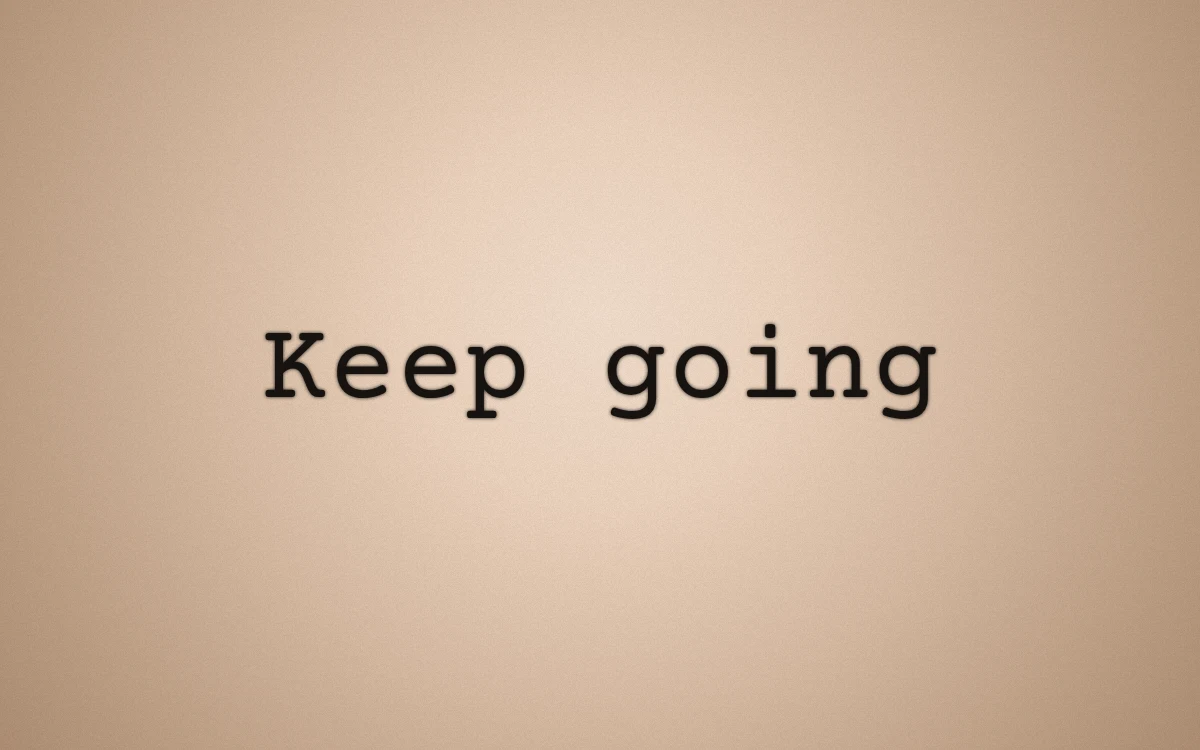
Courier Prime: an actual digital lettering preview, not a record of a completed tattoo.
Begin with character recognition
Type the whole phrase, including punctuation and numbers. A name, a date and a quotation can expose different weaknesses in the same font. Inspect characters such as lowercase l, uppercase I and the number 1 if they appear in your wording.
Read the phrase again at an ordinary viewing size. Do not make a decision only while zoomed in on one attractive letter. Ask another person to read the preview without telling them the words first; any uncertainty is useful feedback for your artist.
Compare clean and textured options
The lettering studio currently includes Courier Prime and Special Elite under Typewriter. Keep the words, size and spacing unchanged when comparing them, so you can see the difference in their forms and surface texture.
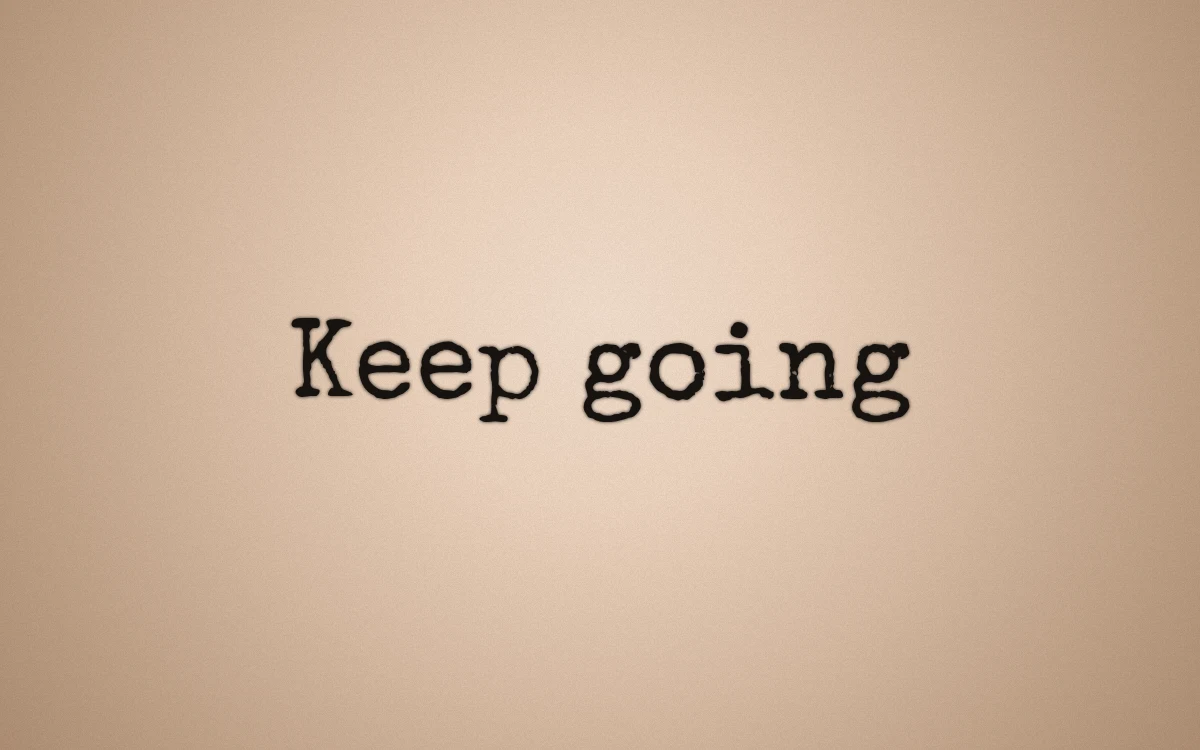
Special Elite: the same wording rendered through the actual tool. The visible texture belongs to the font preview; it does not predict a healed tattoo.
Notice whether the textured direction supports the mood you want or competes with the words. You can prefer a rough visual character without asking your artist to copy every digital irregularity. Describe the atmosphere you like and leave room for a custom interpretation.
Inspect punctuation as carefully as letters
A small period, quotation mark or hyphen can become easy to overlook in a textured preview. Check that each mark is present, deliberate and in the right position. Compare the graphic with the verified plain-text phrase before exporting it.
If the wording includes another language or an unfamiliar character, confirm the wording independently and resolve any missing-character warning. A typewriter style does not verify spelling or guarantee that a font contains every glyph you need.
Keep spacing comparisons controlled
Once you prefer a font, try a second spacing setting without changing the wording or size. Look at the overall rhythm, word breaks and any pair of letters that seems unusually crowded or separated. Return to the original version if the change reduces clarity.
Pixel spacing is a preview control, not a physical gap on skin. Explain what you like about the result instead of giving the artist a browser setting as an execution rule. The broader font selection guide helps if you decide a different lettering family suits the phrase better.
Bring a clear preference and an alternative
Save the preferred preview and one alternative that shows a meaningful difference. Add a short note such as "prefer the cleaner characters" or "like the textured mood, open to a redraw." Keep the exact words in plain text beside the image.
Your artist should advise on final lettering, placement and size. The file is a communication reference, not a professional transfer stencil or a guarantee of the finished result. Proofread the final revised artwork again before treating the wording as settled.
Make your own
Explore a tattoo concept with the AI generator (free usage is limited), preview lettering with the free font tool, or try a placement preview. AI design references are not professional tattoo-ready stencils.